
You'll learn to
- Explain where media lives and which file types a display can play
- Describe what happens to a file between upload and playback, and when to use Don't transform
- Build a playlist and explain how durations, looping and audio work
- Explain how content languages, the audio companion and Sync display build on a playlist
Media items belong to the account's Content Library, not to one project. When Happy Pedals uploads a promo clip for the counter, the same clip can go in the van's playlist too. It can even go in another project, without being uploaded twice.
A display plays three kinds of media: images, video and audio. The Content Library also holds files other STQRY products use, like maps, web packages and 3D models. If a museum with a visitor app drops one of those into a playlist, the display shows "Unsupported media item".
MP4 with H.264 video and AAC audio is the safest video format, because it plays everywhere. See Supported media formats.
Builder prepares every file for the display it's going to.
| Media | Delivered as |
|---|---|
| Image | Resized to the display's own resolution |
| Video | A standard 480p version |
| Audio | MP3 |
Picture a museum with a 4K panel in the foyer and a 1080p Fire TV Stick in the café. Each display fetches images at its own pixel size, so the foyer gets a 4K image and the stick doesn't waste bandwidth. Video is transcoded to a standard 480p version, which plays smoothly on modest hardware.
Don't transform on a media item skips that step and sends the original. It suits a large display viewed up close where video quality matters, or an image that should be letterboxed rather than cropped. The cost is a slower first load, and a big master file can stutter on an older stick.
There's no limit on file size or playlist length. The practical limit is how long the first download takes, because a display caches everything before it plays anything.
Playlists play top to bottom, then loop
- Images: 10 seconds unless you change it
- Videos: always their full length
- Images and video only
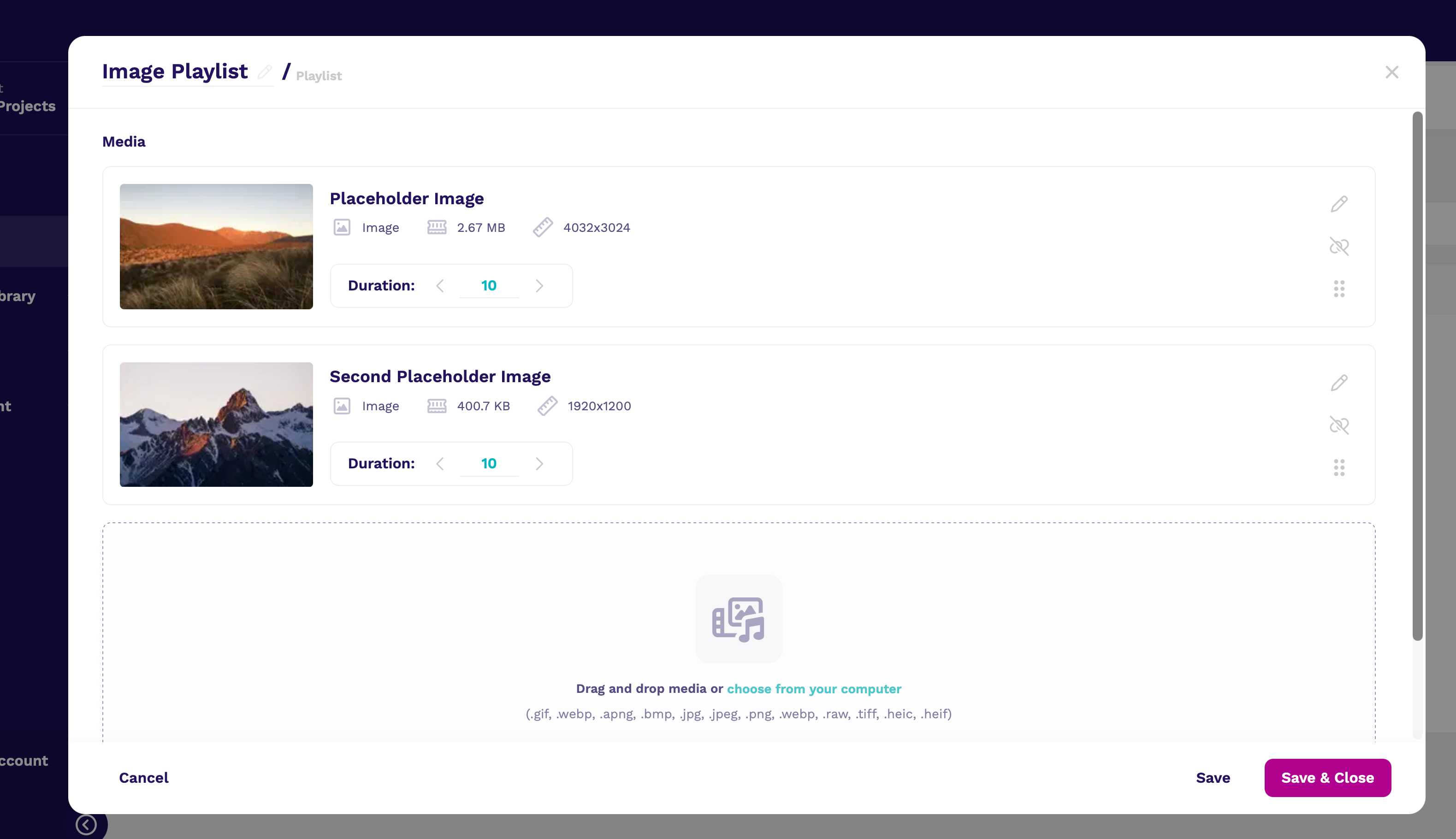
A playlist is an ordered list of images and videos. It plays top to bottom, then starts again with no gap. Items cut straight from one to the next.
Each image has a Duration in seconds, defaulting to 10. A video always plays its full length, whatever the duration field says. Builder pre-fills a video's duration with its real length so the two match.
Playlists take images and video only. Audio reaches a display through a schedule, a direct assignment or a location program instead.
If a customer calls because their change didn't appear, ask whether they saved it. Save and Save & Close are separate buttons, and an unsaved playlist is a common cause of that call.
See Create a playlist.
Happy Pedals has five playlists. The first four are built for the shop counter's schedule. There's one for each part of the trading day, plus a welcome loop that fills every gap. The fifth plays on the shuttle van while it's in the downtown pickup area.
Notice that each playlist is small and does one job. That makes them easy to reuse. A playlist can go on as many displays as you like. It can also appear in a schedule and in a location program.
When you build a demo, start with playlists like these. A customer understands schedules much faster when the playlists already have obvious names.
One playlist, many languages
- A media item holds one file per language
- Visitors pick from pills on the display, or use a remote
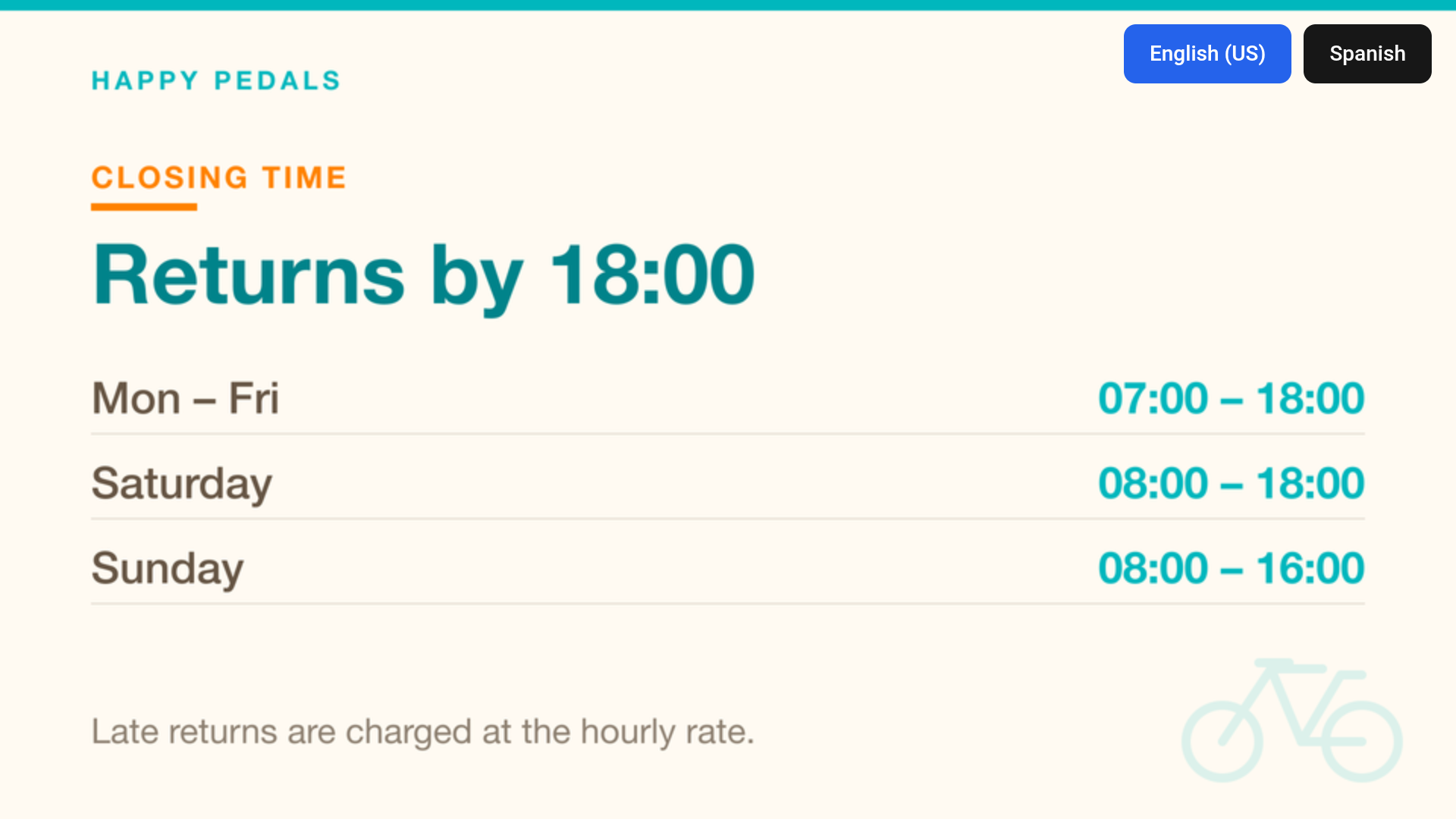
Say a museum wants its lobby posters in English and Spanish. Each media item can carry a different file for each language. One playlist then shows the English poster to one visitor and the Spanish version to the next. A project has a primary language and any number of additional ones. Items without a translation fall back to what's available, so customers can roll out languages gradually.
Turning on Language switcher enabled in project settings puts language pills on the display. On a remote, Left and Right step through the languages. See Content languages and the language switcher.
Can visitors listen on their own phone?
- The audio companion shows a QR code on the display
- The sound plays on the visitor's phone
The audio companion shows a QR code on the display. A visitor scans it and hears the display's audio on their own phone, in their own language, in step with what's playing.
It's switched on per device in the settings overlay, not in Builder. See The audio companion QR code.
Sync display makes every display in a group show the same item at the same moment. Picture two displays side by side in a museum foyer, playing the same playlist. Without it, displays that started at different times stay out of step all day.
It's a switch on each display record, so every display in the group needs it on. The Sync display column in the Displays tab shows a tick for each one.
A synced display works out its position from the clock, not from when it started. So one that reboots at 3pm rejoins where its neighbours are. The displays don't need to share a network or see each other, so they stay in step even in different buildings.
For a single display it does nothing. See Synchronized playback across multiple displays.
- Duration only applies to still images. A video always plays its full length.
- No. Playlists take images and video. Audio goes on a display directly, in a schedule block, or in a location program zone, trigger or cue.
- That Sync display is on for both displays, then that both are playing the same content. If they're running a schedule, check both have the same timezone.