
You'll learn to
- Explain why replacement hardware pairs with the same display in Builder
- Adopt a display with a screen code, and connect one with an activation key and region
- Set the four fields every new display needs
- Explain how content changes and app updates reach a display
A display is the hardware on the wall or in the vehicle, and its record in STQRY Builder. Pairing links the two, and from then on the hardware plays whatever the record says.
Picture the hardware behind the Happy Pedals shop counter failing. They pair a replacement, say a new Fire TV Stick, with the same display, and its name, schedule and history all carry over. Those live on the record, not the hardware. The last slide in this module shows how.
We say "display", never "screen", because customers also build screens for their apps in Builder.
Displays are adopted into the account first, under Manage Account → Displays, and then assigned to a project.
Adopt it with the screen code
- The new display shows
S-and six characters - Type it into Adopt display in Builder
- The display moves on by itself
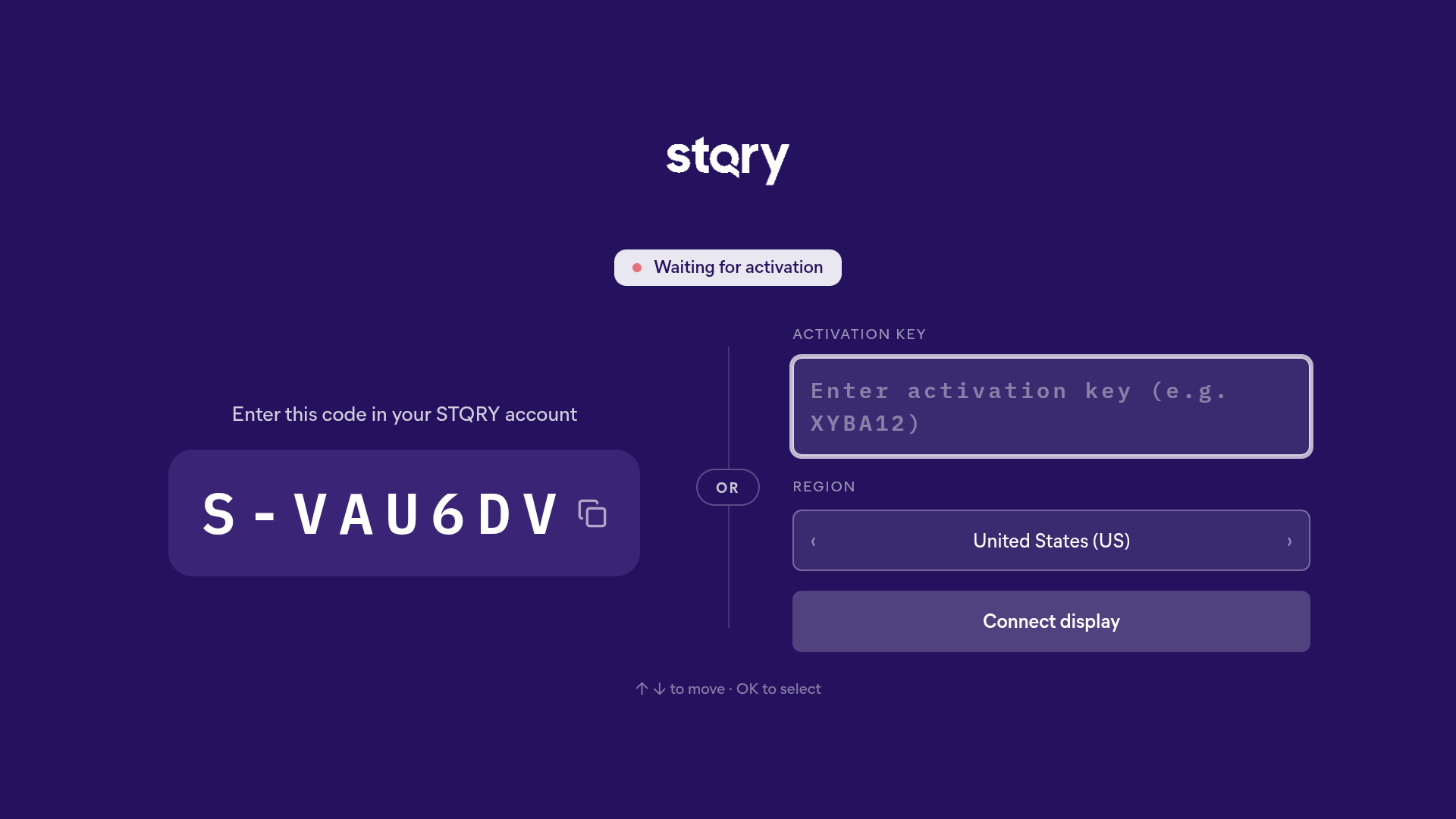
When Happy Pedals installs Signage on a new device, it opens on the setup page. The left side shows a screen code, which is S- followed by six characters. In Builder, they go to Manage Account → Displays, click Add display, choose Adopt display and type the code.
The device checks in every five seconds, so it moves on by itself almost immediately. Nobody needs to touch it. The code leaves out characters that are easy to confuse, so there's no 0, O, 1, I or L.
This is the route to recommend almost every time. When adopting with a screen code, the region is filled in automatically, so the mix-up on the next slide can't happen. See Connect a display to your account.
Every display record has a six-character activation key. It stays the same for the life of the record. Renaming the display, moving it to another project or changing its content doesn't change it.
The right side of the setup page takes an activation key and a region, and the region matters. Say a customer on a US account types the right key but picks the EU region. The app says the display doesn't exist, even though the key is correct. The region code is in the customer's Builder address, for example beta-us.stqry.com for the US.
On a remote-driven device, OK on the activation key field opens an on-screen keyboard, and Left and Right step through the regions. See Regions and activation keys.
What do you set straight away?
- Name you'll recognise on a long list
- Timezone where the display actually is
- Project
- License
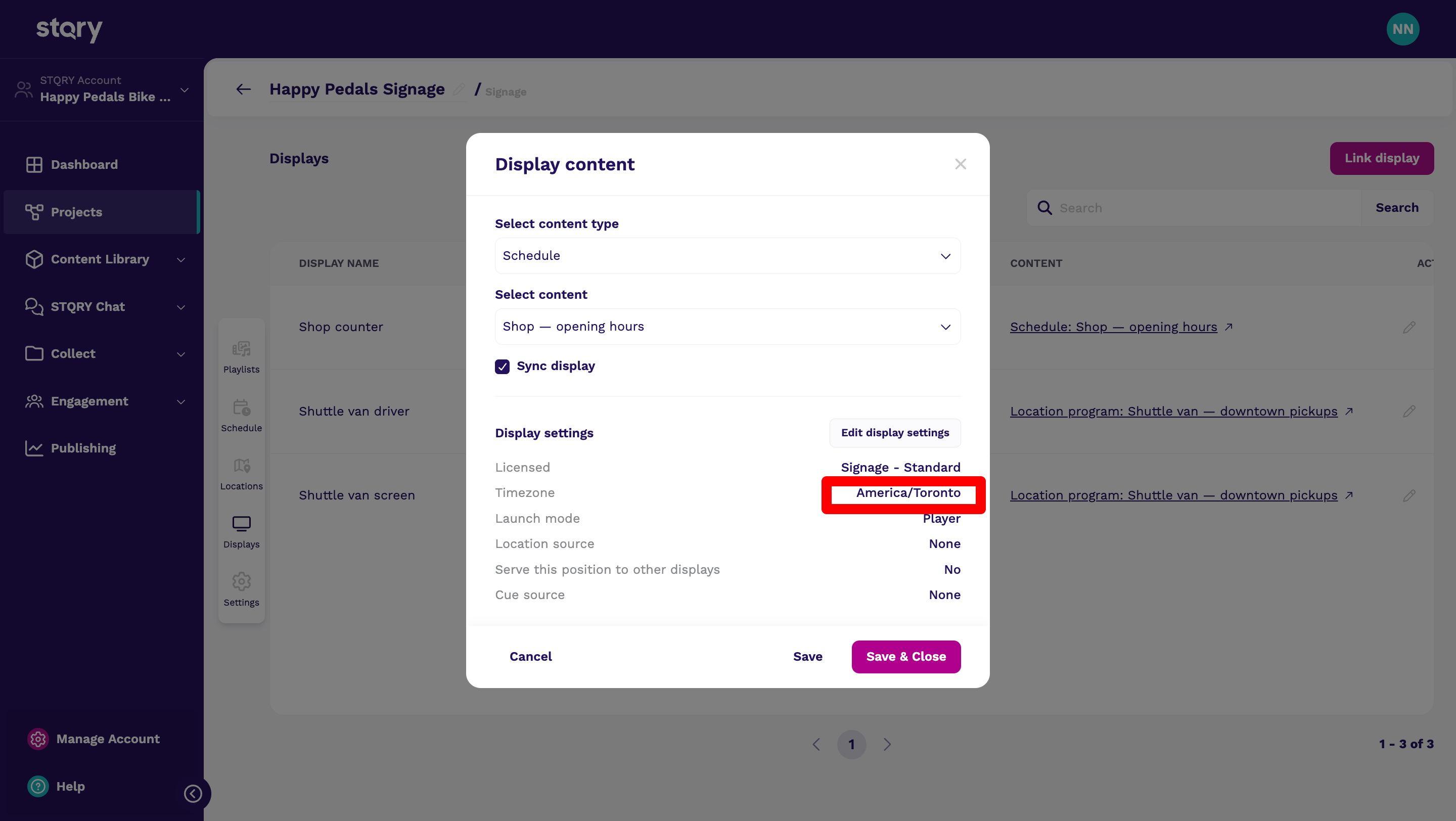
Once a display is adopted, open its record and set these four.
Name it for where it is, like Lobby, North Wall, not Display 3. There are no display groups yet, so the name is how everyone finds it later.
Set the Timezone even if it looks right. New records start on America/New_York, and schedules run in the display's own timezone. If a gallery in Sydney leaves it alone, every block in its schedule plays at the wrong hour. It's the most common schedule complaint we see.
Set the Project, then assign a license from the account's pool. An unlicensed display shows a red warning icon beside its activation key in Builder. See Quick start: from zero to content on screen.
Give it something to play
- Edit the display in the project's Displays tab
- Choose its Display content
- Pick a type, then the item
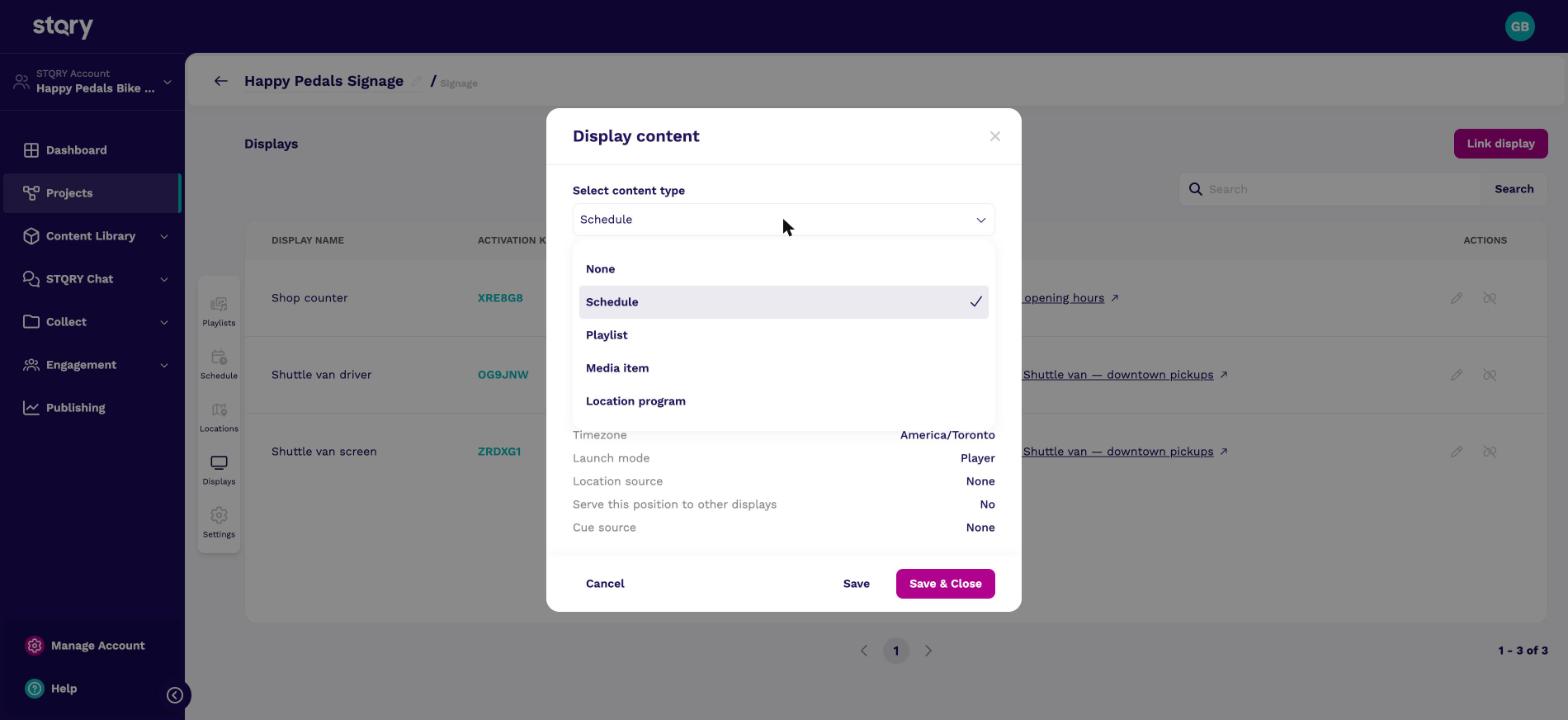
In the project's Displays tab, edit the display and choose its Display content. Pick a type, then the item. The Happy Pedals shop counter is set to Schedule.
The display tells you what it's still missing. Until it's in a project, it says "This display is connected — waiting for content". Once it's in a project with nothing assigned, it says "Display has no running playlists". If a customer calls and reads you one of those, you already know which step they skipped.
Location programs need a Signage - Standard license. See Assign content to a display.
Take the Happy Pedals shop counter. When the shop changes its morning rates in Builder, the counter display picks up the change within about five minutes. A display still waiting for its first content checks every thirty seconds, so a new assignment shows up almost at once. To see a change straight away, use Reload display in the on-device settings overlay.
A brand-new display on the setup page checks in every five seconds, which is why adopting one feels instant.
Content and the app reach a display by different routes. Content comes from Builder, as on the last slide.
Updates to the app itself arrive a different way, through the Amazon Appstore, Google Play, the Microsoft Store or the App Store. Each installed app carries its own copy of Signage and changes only when the store updates it. The browser build is the exception, since it loads the latest release every time.
Once a display has loaded its content, it keeps playing without a network. That's on purpose, because an out-of-date sign is better than a dark one.
Picture the shop's Wi-Fi dropping on a busy Saturday. The counter display carries on with what it already has, so customers never see it go blank.
When a display's hardware breaks, install the app on the new device and connect it with the record's existing activation key. Reset the old device first, so the old and new hardware aren't both claiming the same record.
Change activation key in the on-device settings overlay disconnects the display and returns it to the setup page. Holding OK on a remote for five seconds does the same. Both ask for the project's PIN on any display that has been online, which stops visitors resetting a display.
The PIN is a project setting with no field in Builder yet. If a customer doesn't know theirs, their CSM or the support team provides it. See Open the on-device settings overlay.
- The region is wrong. A key only resolves in the region the account lives in. Adopting with a screen code avoids this, because the region is filled in for you.
- The timezone. New display records start on
America/New_York, and schedules resolve in the display's own timezone. - Install Signage on the replacement device and connect it with the same activation key. The display record, and everything on it, carries over.