
You'll learn to
- Gather the three facts that narrow down any display problem
- Read Builder's status badges and the display's own messages
- Use the on-device settings overlay to check and reload a display
- Work out why a display is black, or why a change hasn't appeared
Say a customer calls because their lobby display isn't right. Before anything else, get three answers, and everything after goes faster.
First, what the display actually shows. A message, a black display and the wrong content are three different problems. Second, what Builder's status badge and last-seen time say. Third, what the display's own Diagnostics panel says.
The third one answers a question people forget to ask. Is the hardware in front of them the display record they're looking at in Builder?
Troubleshooting a display works from the symptom, and it's the article to send a customer.
What is Builder's badge telling you?
| Badge | Means |
|---|---|
| Showing content | Something playable is assigned |
| No content | Nothing assigned, or empty |
| Awaiting project | Adopted, no project yet |
| Not connected | Never checked in |
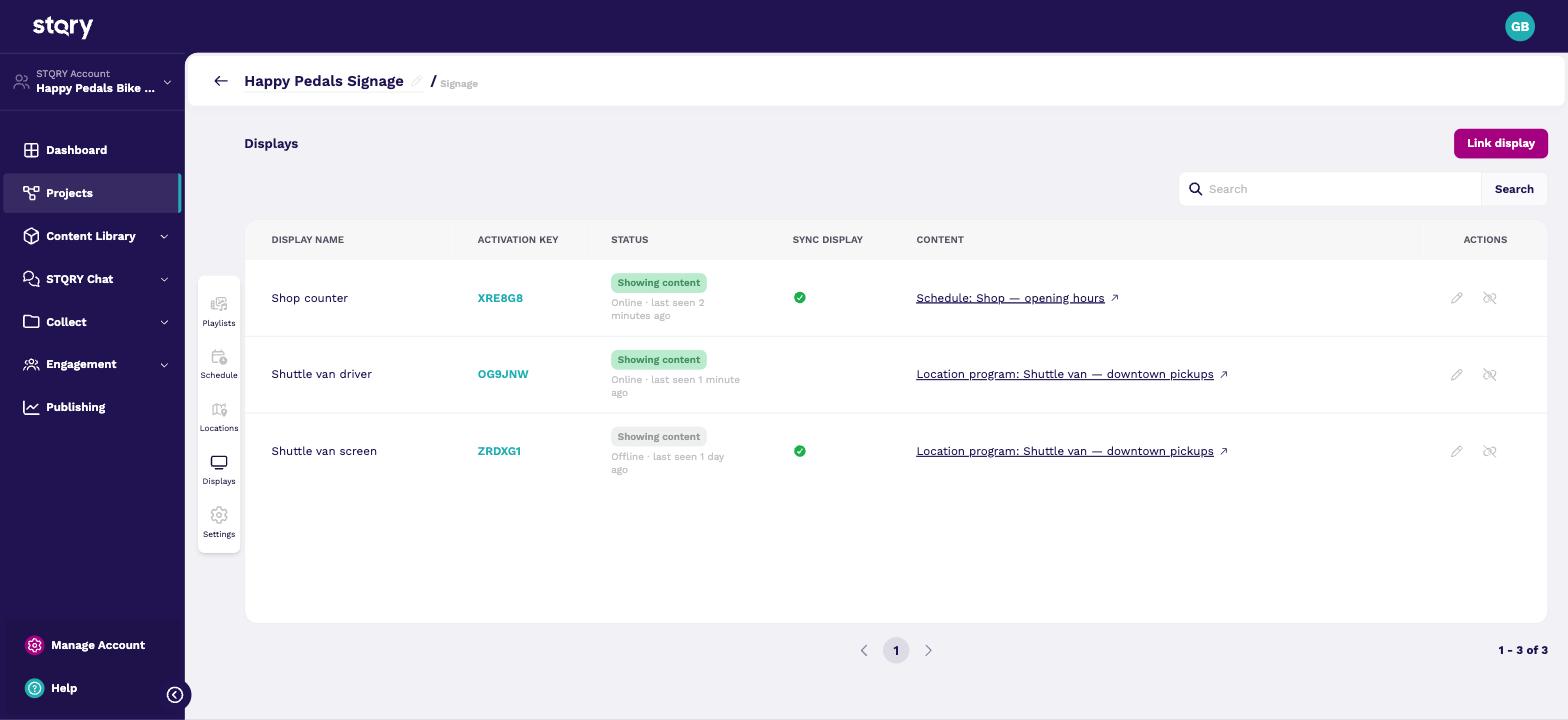
The badge reports what the display last told Builder it was doing, with a line underneath like Online · last seen 3 minutes ago. A display is marked Offline after two hours with no contact, and its badge turns grey.
Two readings trip people up. When a customer sees Offline but the display is playing perfectly, it's running from its cache, and only the network is broken. And Showing content doesn't change with the time of day. A scheduled display outside its hours can be green and still show "Display has no running playlists".
A display is marked Offline after two hours with no contact, and its badge turns grey.
A playing display checks for changes every five minutes. To see a change at once, use Reload display in the overlay.
A display tells you why it isn't playing, and these four messages cover most calls. Ask the customer to read you the exact words.
"This display is connected — waiting for content" is about the project. Set one on the display record. "Display has no running playlists" means it's in a project with nothing to play right now. That can be no content, deleted content, or a schedule with no active block. "Waiting for a location fix" means a location program is assigned and no position has arrived. The activation key message usually means the wrong region.
The loading lines, like Downloading media items, aren't errors. A display stuck on one of them points at the network. See On-screen messages explained.
How do you check the display itself?
- Open the settings overlay
- Diagnostics confirms the record
- Reload display fetches the latest
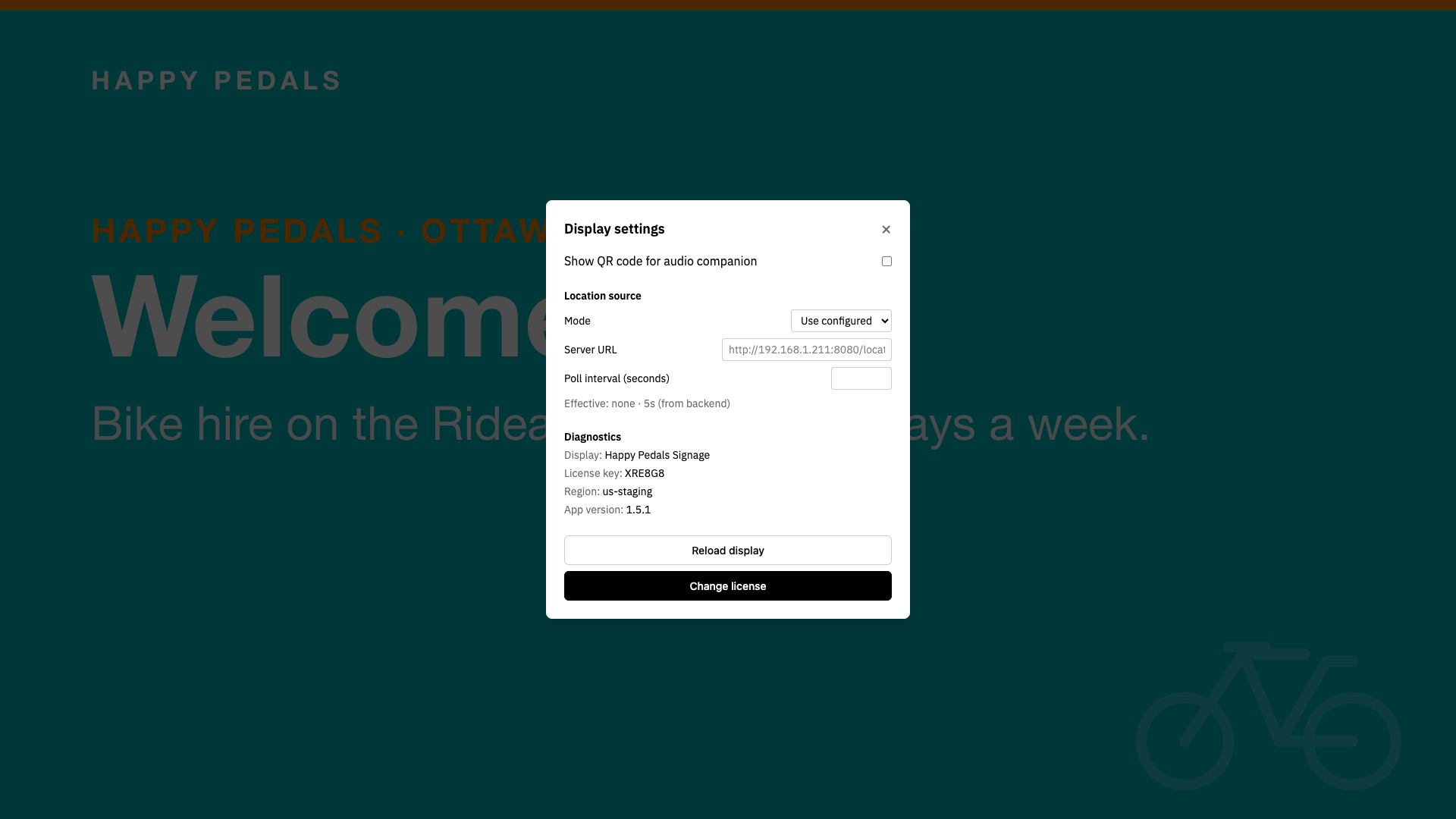
Every display has a settings overlay behind the project's PIN. Tap five times in the bottom-right corner, press Esc on a keyboard, or press Up five times on a remote. See Open the on-device settings overlay.
Diagnostics shows the project name, activation key, region and app version. The Display line shows the project name, not the display's own name, so the Happy Pedals shop counter reads Happy Pedals Signage. Compare the activation key with Builder to confirm you're looking at the right record.
Reload display fetches the latest content immediately. Change activation key disconnects the display, which is why the overlay sits behind a PIN.
When a customer's display is black with no text at all, it isn't showing one of our messages. Start at the hardware and work inwards.
Check the TV or monitor is on and on the right input. A Fire TV Stick powered from the TV's USB port loses power whenever the TV does, so use the wall adapter. Some devices come back to their launcher after a power cut instead of the app.
Then check the content. A display with a location program and its Location source left on None stays silent and black. A display outside every zone is blank. Finally, check the device's own sleep and screensaver settings.
Picture Happy Pedals updating its hire rates, while the shop counter still shows the old ones. A playing display checks for changes every five minutes. To see a change at once, use Reload display in the overlay.
If it still doesn't appear, check Builder's last-seen time. An offline display runs from cache and won't pick up changes until its connection returns. Then check the change was really saved, since the playlist editor's Save and Save & Close are separate buttons.
If the content is right but the timing is wrong, it's a schedule question. Go back to the display's timezone and the block priorities. See How updates reach your displays.
When a problem goes past these checks, collect these details before raising it. With them, the team can usually answer straight away. Without them, the first reply is a request for them.
A photo of the display and one of the Diagnostics panel are worth more than a long description. Between them they cover most of the list.
- Its network. The display is running from its cache, which is how it's meant to behave. Check its Wi-Fi or wired connection, and any proxy filtering
*.stqry.com. - In the settings overlay, under Diagnostics. Quote it whenever you escalate.
- Wait five minutes or press Reload display. If that doesn't bring the change in, check the display is online and that the change was saved.